Slow or laggy remote desktop? Try connecting through Hong Kong routes and choose one that works better for your network.

For Windows 10 22H2 / Windows 11 x64 PCs. Extract and run using the built-in .NET Framework; no separate Clash installation is required.
Portable ZIP · Validation release · Results depend on your route and network conditions
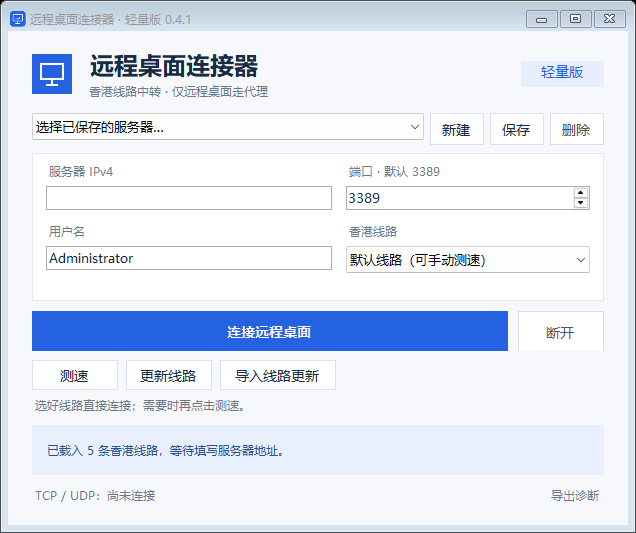
Extract the entire ZIP into a local folder. Run “远程桌面连接器.exe” and keep the adjacent app folder. Do not run it from inside the ZIP.
Copy the IPv4 address, RDP port and username from your server details. The default port is 3389; use the actual port shown in your control panel. Select a route, optionally test it, and save the profile.
Click “连接远程桌面”, approve administrator access when requested, then enter your server password in Windows Remote Desktop. Keep the connector running during your session.
If a route is slow, select another Hong Kong route and click “换线并重新连接”. Minimizing sends the tool to the system tray; closing it disconnects the remote desktop session.
This version supports IPv4 and one active server connection at a time, and requires local administrator access. It does not save server passwords. Verify the server identity when certificate prompts appear. The current package is not publisher code-signed.
If you still cannot connect, export diagnostics and open a support ticket so we can check the route and server status.

Based in Singapore, we provide high-performance cloud servers, web hosting, bare metal servers, domains, SSL certificates and business email to customers worldwide. With over 15 years of operation, we deliver stable, secure and fast cloud services.